ChatGPT GIF Generator: How to Make a Loop from Text or a Photo
ChatGPT can create looping GIFs from a description or a still-image reference. OpenAI’s help page says GIF creation is rolling out, so your account may not show it yet. This independent guide was checked on November 5, 2026; GifEmoji is not affiliated with OpenAI.
Feature instructions checked
Open Image to GIF AI — Animate Your Photo
Copy a GIF prompt for your photo or idea
1. Choose text or a still photo
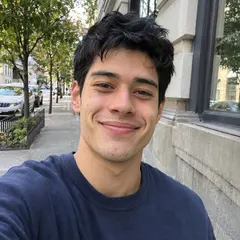
Open ChatGPT and describe a simple scene, or attach a still image you are allowed to use. A single subject and one small movement are easier to review. For example, describe a paper boat gently bobbing, or use a clear portrait for a small wave.
2. Ask explicitly for a looping GIF
State the action, what should remain still and how the motion should return to the starting pose. For a reference photo, ask to preserve the face or pet markings. A request to make a photo look animated is less specific than a request for an actual looping GIF file.
3. Review and refine the result
Watch the entire loop and inspect changing facial details, extra limbs and the final transition. OpenAI says you can describe an edit to a GIF ChatGPT created in the conversation. Change one thing at a time so you can compare the result.
4. Adjust speed and save
Open the generated GIF to find the playback-speed, save and sharing options described in OpenAI’s help page. Check the saved file outside the chat. A playable GIF and a sticker pack are different outputs; a chat-platform sticker pack still needs its own format and import route.
If GIF creation is not available
Availability is still rolling out. Check the current official help page rather than assuming every account has the same controls. OpenAI also says ChatGPT cannot edit an animated GIF you upload: use a still image as the reference, or request changes to a GIF it created.
When a preset tool is useful
ChatGPT lets you describe a custom scene. GifEmoji takes a different route: choose an existing reaction, pet or character template and upload a reference. The tool below uses preset motions and styles; it does not provide ChatGPT’s speed controls or a frame editor.
From download to your chat
- Telegram
- Use the WebM video sticker export, then follow the Telegram guide to add the pack.
- Download WhatsApp-ready WebP files, then use a compatible sticker importer. A website download does not install a whole pack. See the import steps.
- iMessage & social video
- Share GIFs in messages or an available silent MP4 on social platforms.
Questions before you start
Is this the official ChatGPT GIF generator?
No. This is an independent tutorial. Use ChatGPT itself to follow the ChatGPT instructions; the photo tool below belongs to GifEmoji.
Is ChatGPT GIF creation available to every account?
OpenAI’s current help page describes it as rolling out. Availability can differ, so check your account and the official page.
Can I upload an existing animated GIF and edit it?
OpenAI’s current instructions say uploaded animated GIFs cannot be edited. They describe requests to change GIFs that ChatGPT created.
Are the ChatGPT instructions and the API the same?
No. This guide describes the ChatGPT product. API capabilities, formats, billing and limitations must be checked separately; a ChatGPT feature does not establish that this website has the same feature.
References: OpenAI: Images in ChatGPT — checked November 5, 2026