GPT Image 2.6 GIF Generator: Turn a Photo into a Loop
Want to turn a selfie, pet photo or drawing into a GIF with GPT Image 2.6? Choose a preset below to make a photo-based reaction with GifEmoji, or use the prompts and ChatGPT instructions in this guide for a custom motion. GifEmoji is an independent tool, not an OpenAI product.
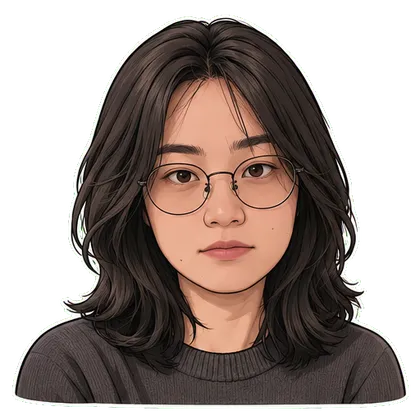
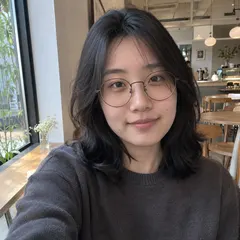
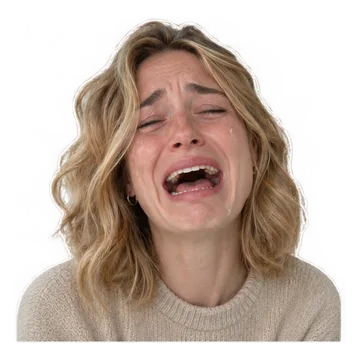
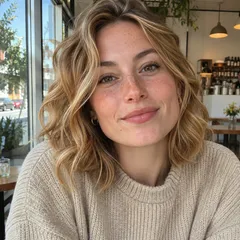
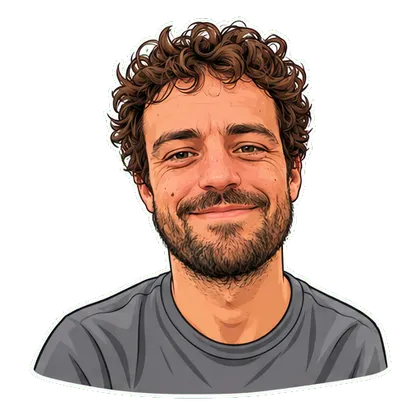
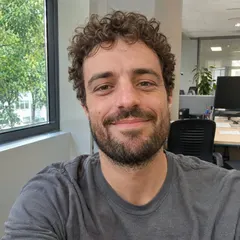
Turn a photo into an animated GIF with a preset effect. Choose a face reaction, dancing pet or original-character motion, then upload your image and review the loop.
Choose a reaction, pet or character effect above, then upload a clear still photo you have permission to use. Select the available motion and style, generate, and review the preview before downloading. GifEmoji provides preset animations and available export formats; it does not expose every GPT Image 2.6 setting or ChatGPT editing control. Check the displayed generation cost before starting.
How to make a GIF in ChatGPT Images 2.6
For a custom idea, open ChatGPT, attach a still photo if needed, and explicitly ask for a looping GIF. Describe one movement and what should stay still. OpenAI says GIF creation is rolling out; access can vary. Review the result in the conversation and request one change at a time. Open the GIF to use its available playback-speed, save and sharing controls.
Photo-to-GIF prompt: a small reaction
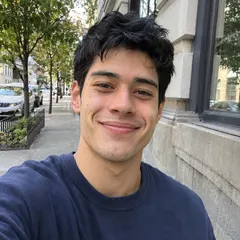
Use a portrait with both eyes visible. Copy this starting prompt into ChatGPT with your photo; it is a suggested instruction, not a tested-output guarantee. GifEmoji’s preset tool above does not accept pasted prompts.
Create a short looping GIF from the attached portrait. Have the person glance sideways, raise one eyebrow, then return to the opening expression. Preserve their facial features, hairstyle and glasses. Keep the camera and background still. Use a small movement and keep the full face in frame. Do not add text or other people.
Pet GIF prompt: a gentle dance
Choose a full-body reference with paws and tail visible. A modest repeating gesture gives you fewer changing details to inspect than a complicated dance sequence.
Turn this pet photo into a short looping GIF of a gentle side-to-side dance. Preserve the pet’s coat markings, eye color and proportions. Keep its paws and tail in frame with a fixed camera and a simple background. Return smoothly to the starting pose. Do not add text or extra animals.
Drawing-to-GIF prompt: a waving character
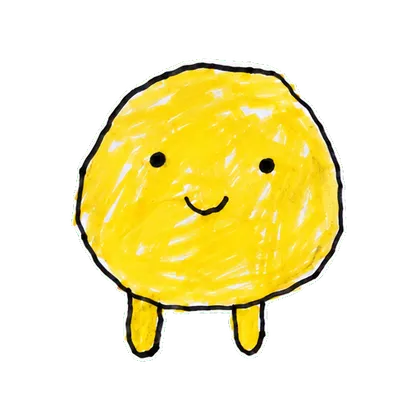
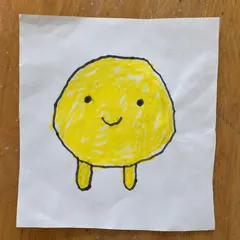
Use your own character art with a clear outline. Compare the animated face, line thickness and colors against the original before sharing.
Animate the attached original character as a short looping GIF. Make it wave one hand and return to its original pose. Preserve the outline, colors, face and proportions. Keep the other hand, background and camera still. Keep the whole character visible. Add no lettering or new objects.
Turn a GIF idea into an animated sticker
A GIF and an installed sticker pack are different results. For a coordinated set of reactions, use a sticker-pack template. Choose the available Telegram WebM or WhatsApp WebP export, then follow the platform’s import steps below. Uploading a GIF as a message attachment does not install a pack. Inspect edges and readability at chat size before sharing.
If the GIF does not animate or the loop jumps
If ChatGPT returns a still image, ask explicitly for a looping GIF file and check whether GIF creation is available in your account. For a jumping loop, simplify the action and ask for a return to the opening pose. If identity drifts, use a clearer reference and smaller movement. Check the downloaded file in a viewer that supports animation; a thumbnail alone does not show whether the file animates.
From download to your chat
Telegram
Use the WebM video sticker export, then follow the Telegram guide to add the pack.
WhatsApp
Download WhatsApp-ready WebP files, then use a compatible sticker importer. A website download does not install a whole pack. See the import steps.
iMessage & social video
Share GIFs in messages or an available silent MP4 on social platforms.
Questions before you start
Is this the official GPT Image 2.6 GIF generator?
No. GifEmoji is an independent template-based tool. The ChatGPT instructions describe OpenAI’s separate product; use ChatGPT to follow those steps.
Can I make a GIF from a photo instead of a text prompt?
Yes. The GifEmoji workflow starts with a still-photo upload and a preset. OpenAI also documents still-image references for GIF creation in ChatGPT, subject to feature availability.
Can GPT Image 2.6 edit an animated GIF I upload to ChatGPT?
OpenAI’s current ChatGPT help page says it cannot edit an uploaded animated GIF. Start from a still image, or ask for changes to a GIF created in the conversation.
Is GPT Image 2.6 GIF generation free here?
Check the current price or credit requirement shown in the GifEmoji workspace before generating. ChatGPT access and OpenAI API billing are separate from GifEmoji’s pricing.
Which GPT Image 2.6 GIF prompt should I start with?
Match the prompt to your input: a small facial reaction for a selfie, a gentle dance for a full-body pet photo, or a wave for an original drawing. Keep one subject and one action, then inspect the entire loop.